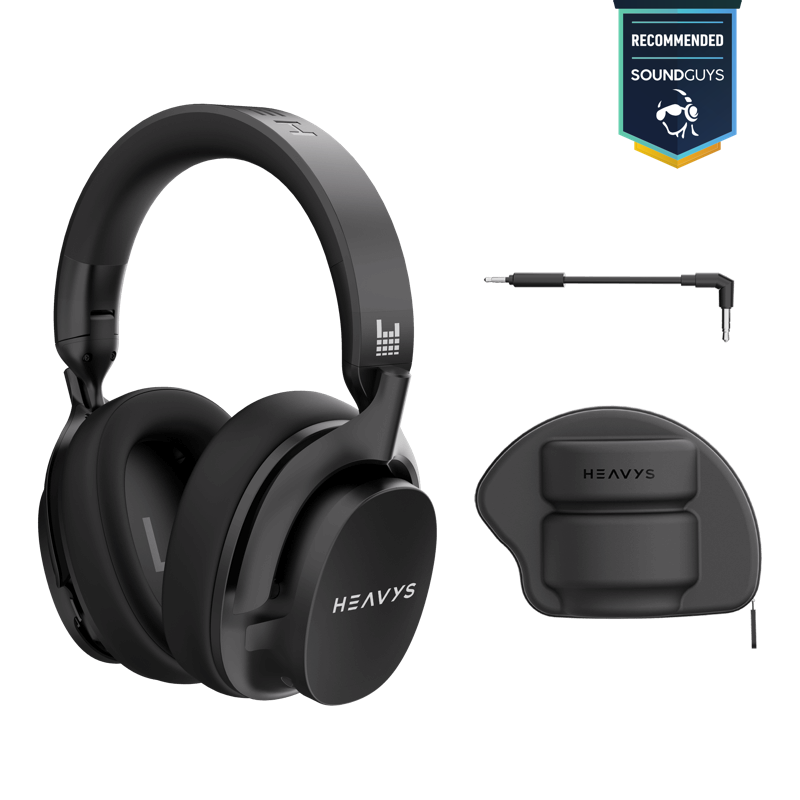

H2H PRO FAQ
*Last updated: September 2, 2026
Getting Connected
How do I turn on my H2H Pro?
Press and hold the Power / Modes button on the right earcup for approximately 1.5 seconds.
The headphones automatically enter Bluetooth pairing mode the first time they are powered on.
How do I turn off my H2H Pro?
Press and hold the Power / Modes button for approximately 2 seconds.
How do I pair the H2H Pro for the first time?
-
Turn on the headphones.
-
Open the Bluetooth settings on your phone, tablet, or computer.
-
Select HEAVYS H2H Pro.
-
Wait for your device to confirm the connection.
-
Play audio to test the headphones.
What name should I look for in the Bluetooth menu?
Look for HEAVYS H2H Pro.
How do I put the H2H Pro back into Bluetooth pairing mode?
-
Turn on the headphones.
-
Press and hold the H-Button on the left earcup for 3 seconds.
-
Open your device’s Bluetooth settings.
-
Select HEAVYS H2H Pro.
How do I clear the Bluetooth pairing list?
Press and hold the designated edge button for approximately 10–15 seconds.
This performs a Bluetooth reset and power cycle. It also deletes the saved pairing list and existing device connections.
After the reset:
-
Turn the headphones on.
-
Open your device’s Bluetooth settings.
-
Remove the old HEAVYS H2H Pro entry if it remains listed.
-
Pair the headphones again.
This is different from the power-cycle reset because it deletes saved Bluetooth connections.
Can I listen through USB-C?
Yes. The USB-C port on the left earcup supports:
-
Charging
-
USB digital audio
Connect the H2H Pro to a compatible device using a supported USB-C cable.
Can I use a wired analog connection?
Yes. The analog input on the right earcup supports a compatible wired audio cable or boom-microphone cable.
Make sure the connector is fully inserted for proper audio and microphone performance.
Controls and Listening Modes
How do I switch listening modes?
Press the Power / Modes button once to cycle through:
-
Normal Mode
-
Hell Blocker Mode
-
Transparency Mode
What is Normal Mode?
Normal Mode is the standard listening mode. Hell Blocker active noise cancellation and Transparency Mode are both turned off.
What is Hell Blocker Mode?
Hell Blocker is the HEAVYS active noise cancellation mode. It helps reduce outside distractions so you can focus on your audio.
What is Transparency Mode?
Transparency Mode allows more outside sound to pass through the headphones, helping you remain aware of your surroundings without removing them.
How do I activate LE Audio?
Press the Power / Modes button three times.
LE Audio is used for compatible low-latency wireless connections, including supported HEAVYS gaming-dongle connections.
How do I activate my device’s voice assistant?
Press the H-Button on the left earcup three times.
Voice-assistant availability and behavior depend on the connected device.
Music Controls
How do I adjust the volume?
Rotate the Media Knob on the right earcup up or down.
The H2H Pro Media Knob provides distinct physical clicks as the volume is adjusted.
How do I play or pause audio?
Press the Media Knob once.
How do I skip to the next track?
Press the Media Knob twice.
How do I return to the previous track?
Press the Media Knob three times.
Music-control behavior may vary depending on the connected device and audio app.
Phone Calls
How do I answer an incoming call?
Press the Media Knob once while the call is incoming.
How do I end a call?
Press the Media Knob once during the call.
How do I reject an incoming call?
Press the Media Knob twice while the call is incoming.
How do I mute or unmute the microphone?
During a call, press and hold the Media Knob for 2 seconds.
Gaming-Dongle Connectivity
How do I pair the H2H Pro with the HEAVYS gaming dongle?
-
Turn on the H2H Pro.
-
Press the Power / Modes button three times to prepare the headphones for the compatible LE Audio connection.
-
Connect the gaming dongle to your gaming device.
-
Press and hold the dongle’s red button for 3 seconds to begin pairing.
-
Keep the headphones and dongle close together.
-
Wait for them to connect automatically.
-
Play audio to test the connection.
How do I reconnect to the gaming dongle through the HEAVYS App?
-
Connect the gaming dongle to your gaming device.
-
Press and hold the dongle’s red button for 3 seconds to enter pairing mode.
-
Open the HEAVYS App.
-
Use the available BLE switch to reconnect the H2H Pro to the dongle.
-
Wait for the connection to complete.
Does the H2H Pro reconnect to the gaming dongle automatically?
Yes. After the H2H Pro and gaming dongle have been paired, they should reconnect automatically when the dongle is inserted into a supported device and the headphones are available.
Supported gaming devices include:
-
PlayStation 5
-
Nintendo Switch
-
Windows PC
-
Steam Deck
Connection behavior can depend on the selected mode, firmware, and device configuration.
HEAVYS App and Firmware
What can I do in the HEAVYS App?
Use the HEAVYS App to:
-
Personalize your sound
-
Access available device settings
-
Unlock supported features
-
Install firmware updates
-
Receive future performance improvements
Feature availability may depend on the app version and installed headphone firmware.
Where can I download the HEAVYS App?
Download the HEAVYS App from your mobile device’s app store. You can also scan the app QR code included in the H2H Pro Quick Start Guide.
How do I update the H2H Pro firmware?
-
Connect the H2H Pro to your phone.
-
Open the HEAVYS App.
-
Confirm that the headphones appear as connected.
-
Open the firmware-update section.
-
Start the available update.
-
Keep the app and headphones connected.
-
Follow the instructions displayed in the app.
-
Remain on the update screen until the process is complete.
Do not close the app, turn off the headphones, or disable Bluetooth while the update is installing.
What should I do if the firmware update fails?
-
Confirm that the H2H Pro remains connected.
-
Fully close and reopen the HEAVYS App.
-
Log out of the app.
-
Clear the app’s stored data using your phone’s app settings.
-
Open the app and log in again.
-
Reconnect the H2H Pro.
-
Retry the firmware update.
The steps for clearing app data vary by phone and operating system.
Do I need the HEAVYS App to use the headphones?
No. Core controls and connection options work directly from the headphones.
Use the app to personalize the sound, manage available settings, access additional features, and install firmware updates.
Shells and Customization
What are HEAVYS Shells?
HEAVYS Shells are interchangeable designs created by HEAVYS and through collaborations with bands and artists.
Visit heavys.com to explore available designs.
Availability and H2H Pro compatibility may vary by collection. Check the product description before purchasing.
Troubleshooting
My H2H Pro does not appear in Bluetooth settings. What should I do?
-
Confirm that the headphones are powered on.
-
Press and hold the H-Button for 3 seconds to enter Bluetooth pairing mode.
-
Open your device’s Bluetooth settings.
-
Look for HEAVYS H2H Pro.
-
Select it to connect.
Pairing mode did not fix the connection. What should I do?
Clear the Bluetooth pairing list by holding the designated edge button for 10–15 seconds.
This deletes saved pairings and power-cycles the headphones. Afterward, remove any existing H2H Pro entry from your device and pair the headphones again.
The H2H Pro is connected, but I cannot hear audio. What should I check?
-
Confirm that HEAVYS H2H Pro is selected as the active audio-output device.
-
Rotate the Media Knob to increase the volume.
-
Press the Media Knob once in case playback is paused.
-
Increase the volume on the connected device.
-
Test another audio app.
-
Disconnect and reconnect the headphones.
How do I perform a power-cycle reset without deleting paired devices?
Press and hold the Media Knob for approximately 12 seconds.
This power-cycles the H2H Pro without deleting its saved Bluetooth device list.
After the reset:
-
Turn the headphones on.
-
Allow them to reconnect.
-
Test the controls and audio again.
The controls are not responding. What should I try?
-
Press and hold the Media Knob for approximately 12 seconds.
-
Wait for the power-cycle reset to complete.
-
Turn the headphones back on.
-
Test the controls again.
This reset does not delete the saved Bluetooth device list.
Where are the charging and audio ports?
-
The USB-C charging and digital-audio port is on the left earcup.
-
The analog input for a compatible audio or boom-microphone cable is on the right earcup.
Still Need Help?
Email support@heavys.com and include:
-
A description of the issue
-
Your connected device
-
Your connection type
-
Your HEAVYS App version
-
Your H2H Pro firmware version, if available
-
The troubleshooting steps you completed